Learning Materials
📚 この章の学習教材
🎧 音声教材(NotebookLM)
🗺️ マインドマップ
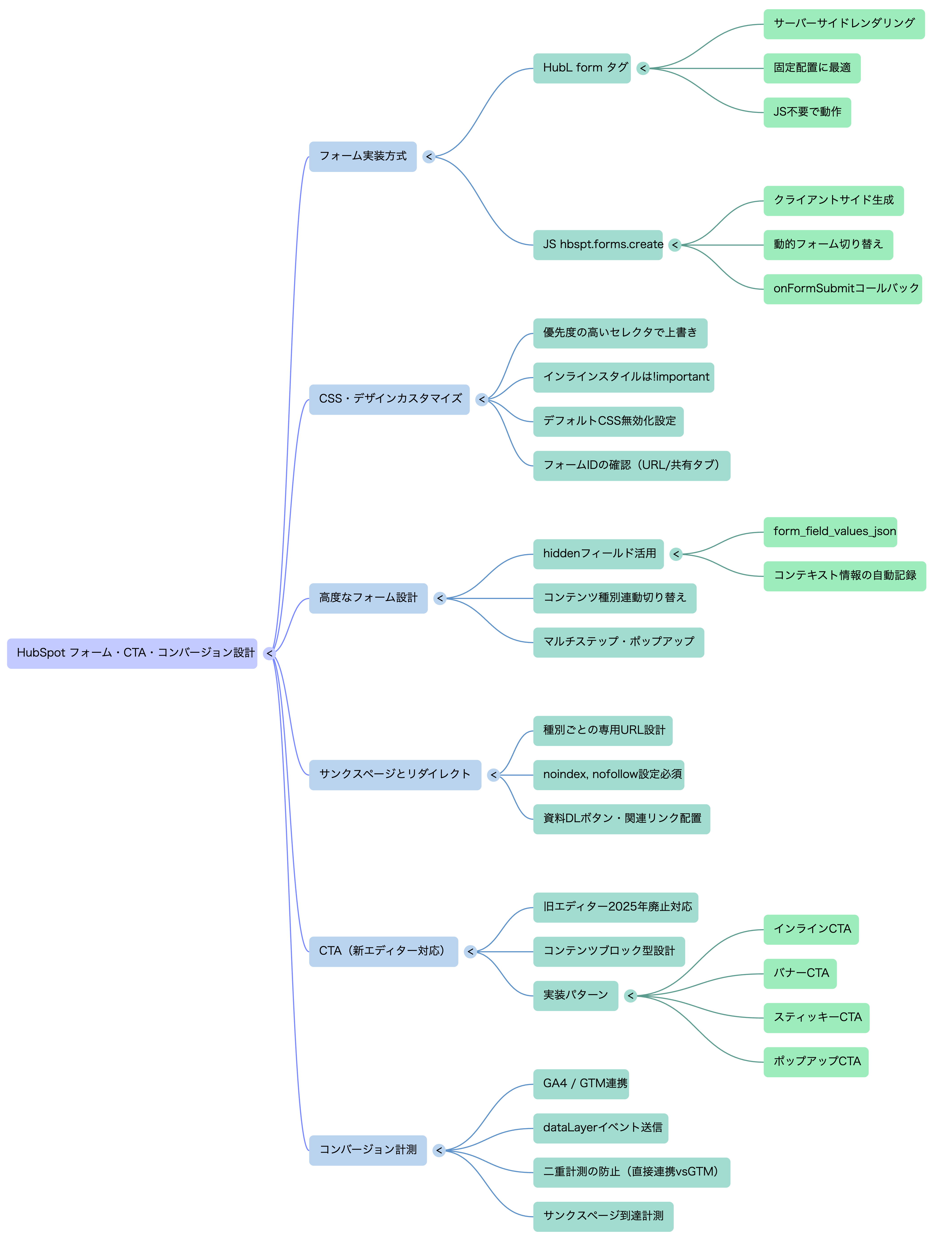
HubSpotフォームの2つの実装方法・CSS上書きパターン・コンテンツ種別連動フォーム切り替え・CTAの設計・サンクスページ・GA4/GTMによるコンバージョン計測まで、コンバージョン設計の全体像を解説します。
HubSpotフォームはCRMと直結しており、送信データがそのままコンタクトレコードに反映されます。 テンプレートへの組み込み方には2つの方式があり、用途に応じて使い分けます。
HubSpotのフォームIDは管理画面の
「マーケティング → フォーム」からフォームを選択し、
URLの app.hubspot.com/forms/PORTAL_ID/FORM_ID/edit
で確認できます。またはフォームの「共有」タブから埋め込みコードを確認すると記載されています。
| 用途 | 推奨実装方式 | 理由 |
|---|---|---|
| 固定ページのフォームセクション | HubL form タグ | テンプレートに直接記述でき、シンプル |
| コンテンツ種別でフォームを切り替える | JS hbspt.forms.create | フォームIDをHubL変数から受け取って動的に変更できる |
| モーダル・ポップアップフォーム | JS hbspt.forms.create | DOM操作と組み合わせやすい |
| 送信後に独自処理をしたい | JS hbspt.forms.create | onFormSubmit コールバックが使える |
| ランディングページ | どちらでも可 | 要件に応じて選択 |
HubLの {% form %} タグは最もシンプルなフォーム実装方法です。
サーバーサイドでフォームのHTMLが生成されるため、
JavaScriptが無効な環境でも動作します。
{# 最もシンプルな実装 #}
{% form
  form_id="xxxxxxxx-xxxx-xxxx-xxxx-xxxxxxxxxxxx"
%}
{% form
  {# ===== 必須 ===== #}
  form_id="xxxxxxxx-xxxx-xxxx-xxxx-xxxxxxxxxxxx"

  {# ===== リダイレクト設定 ===== #}
  response_redirect="https://example.com/thanks"
  {# 送信後のリダイレクトURL。未指定ならHubSpot管理画面の設定が使われる #}

  {# ===== サンクスメッセージ(リダイレクトしない場合)===== #}
  response_message="<p>送信ありがとうございます。担当者よりご連絡します。</p>"

  {# ===== HubSpot Cookieをフォームに紐付ける(トラッキング精度向上)===== #}
  submit_button_text="送信する"
  {# ボタンテキストをHubLから上書きできる #}

  {# ===== 事前入力(hidden フィールド)===== #}
  form_field_values_json='{"lifecyclestage": "lead", "hs_lead_status": "NEW"}'
  {# フォーム送信時にCRMプロパティを自動セットする #}
%}
{# fields.json で form フィールドと redirect_url フィールドを定義しておく #}

<section class="form-section">
  {% if module.section_title %}
    <h2 class="form-section__title">{{ module.section_title }}</h2>
  {% endif %}
  {% if module.section_desc %}
    <p class="form-section__desc">{{ module.section_desc }}</p>
  {% endif %}

  {% if module.form and module.form.form_id %}
    <div class="form-section__body">
      {% form
        form_id="{{ module.form.form_id }}"
        response_redirect="{{ module.redirect_url|default("") }}"
      %}
    </div>
  {% else %}
    <p class="form-section__notice">
      フォームが設定されていません。モジュールの設定からフォームを選択してください。
    </p>
  {% endif %}
</section>
フォーム送信時にページのコンテキスト情報(どのページから来たか、どのコンテンツ種別か等)を CRMに自動記録することで、営業・マーケターへの引き渡し品質が上がります。
{# コンテンツ種別を判定しておく(第3章・第6章のタグ判定パターン)#}
{% set ns = namespace(content_type="blog") %}
{% for tag in content.tag_list %}
  {% if tag.slug starts_with "type:" %}
    {% set ns.content_type = tag.slug|replace("type:","") %}
  {% endif %}
{% endfor %}

{# フォームに hidden フィールドとして渡す #}
{% form
  form_id="YOUR_FORM_ID"
  form_field_values_json='{
    "hs_lead_status"         : "NEW",
    "content_type_custom__c" : "{{ ns.content_type }}",
    "first_conversion_page"  : "{{ content.absolute_url }}",
    "first_conversion_title" : "{{ content.name|escape }}"
  }'
%}
form_field_values_json で渡せるのは、そのフォームに設定されたフィールド(hidden フィールドを含む)のみです。
フォーム側に対応するフィールドが存在しないプロパティ名を指定しても無視されます。
CRMのカスタムプロパティに値を渡したい場合は、フォームにhiddenフィールドとして追加してから指定してください。
hbspt.forms.create() はHubSpotが提供するJavaScript APIで、
任意のDOM要素にフォームを動的に生成します。
フォームIDをJSの実行時に決定できるため、
コンテンツ種別・ユーザー属性に応じた動的なフォーム切り替えに最適です。
{# HTML:フォームの挿入先要素 #}
<div id="hs-form-target"></div>

{# JS:フォームの生成 #}
<script src="//js.hsforms.net/forms/embed/v2.js"></script>
<script>
  hbspt.forms.create({
    // ===== 必須パラメータ =====
    region  : "na1",   // リージョン(日本は通常 na1)
    portalId: "{{ hub_id }}",   // ポータルID(HubL変数から取得)
    formId  : "xxxxxxxx-xxxx-xxxx-xxxx-xxxxxxxxxxxx",

    // ===== 挿入先のCSSセレクタ =====
    target  : "#hs-form-target",

    // ===== 送信後リダイレクト =====
    redirectUrl: "https://example.com/thanks",

    // ===== 送信後コールバック =====
    onFormSubmit: function($form) {
      // 送信直後(リダイレクト前)に実行される
      console.log('フォーム送信完了', $form);
    },

    // ===== 送信完了後コールバック =====
    onFormSubmitted: function($form, data) {
      // サンクスメッセージ表示後に実行される
      // GA4へのコンバージョン送信などに使う
      if (window.gtag) {
        gtag('event', 'generate_lead', {
          event_category: 'form',
          event_label    : document.title
        });
      }
    },

    // ===== フォームの準備完了コールバック =====
    onFormReady: function($form) {
      // フォームのDOMが生成された直後に実行される
      // 入力欄へのfocusなどの初期処理に使う
    }
  });
</script>
{# ① HubL でコンテンツ種別を判定 #}
{% set ns = namespace(content_type="blog") %}
{% for tag in content.tag_list %}
  {% if tag.slug starts_with "type:" %}
    {% set ns.content_type = tag.slug|replace("type:","") %}
  {% endif %}
{% endfor %}

{# ② フォームID辞書と設定をHubLで定義 #}
{% set form_config = {
  "blog"       : {
    "id"      : "BLOG_FORM_ID",
    "title"   : "ご相談・お問い合わせ",
    "desc"    : "記事の内容についてご質問があればお気軽にどうぞ",
    "redirect": "/thanks/contact"
  },
  "seminar"    : {
    "id"      : "SEMINAR_FORM_ID",
    "title"   : "セミナーに申し込む",
    "desc"    : "お申込み後、確認メールをお送りします",
    "redirect": "/thanks/seminar"
  },
  "whitepaper" : {
    "id"      : "WHITEPAPER_FORM_ID",
    "title"   : "資料を無料ダウンロード",
    "desc"    : "フォームにご入力後、すぐにダウンロードできます",
    "redirect": "/thanks/whitepaper"
  },
  "case"       : {
    "id"      : "CASE_FORM_ID",
    "title"   : "事例資料を請求する",
    "desc"    : "詳細資料をPDFでお送りします",
    "redirect": "/thanks/case"
  }
} %}

{% set fc = form_config[ns.content_type]|default(form_config["blog"]) %}

{# ③ HTMLセクション #}
<section class="post-form-area post-form-area--{{ ns.content_type }}">
  <h2 class="post-form-area__title">{{ fc.title }}</h2>
  <p  class="post-form-area__desc">{{ fc.desc }}</p>
  <div id="hs-post-form"></div>
</section>

{# ④ HubL変数 → JS に橋渡し → フォーム生成 #}
<script src="//js.hsforms.net/forms/embed/v2.js"></script>
<script>
  var _hsFormConfig = {
    portalId   : "{{ hub_id }}",
    formId     : "{{ fc.id }}",
    redirectUrl: "{{ fc.redirect }}",
    contentType: "{{ ns.content_type }}",
    pageTitle  : "{{ content.name|escape }}",
    pageUrl    : "{{ content.absolute_url }}"
  };

  hbspt.forms.create({
    region     : 'na1',
    portalId   : _hsFormConfig.portalId,
    formId     : _hsFormConfig.formId,
    target     : '#hs-post-form',
    redirectUrl: _hsFormConfig.redirectUrl,

    // 送信時にGTMイベントを発火
    onFormSubmitted: function() {
      if (window.dataLayer) {
        window.dataLayer.push({
          event       : 'hs_form_submit',
          contentType : _hsFormConfig.contentType,
          formTitle   : _hsFormConfig.pageTitle,
          formUrl     : _hsFormConfig.pageUrl
        });
      }
    }
  });
</script>
HubSpotフォームはデフォルトのスタイルを持っており、サイトのデザインと合わせるためには
CSSの上書きが必要です。ただし、HubSpotフォームはインラインスタイルや
!important を使った強いスタイルが多く、
上書きには優先度の高いセレクタを使う必要があります。
<div class="hbspt-form">         <!-- フォーム全体ラッパー -->
  <form class="hs-form">        <!-- form タグ本体 -->

    <div class="hs-form-field">   <!-- 各フィールドのラッパー -->
      <label>お名前</label>
      <div class="hs-input">        <!-- 入力要素ラッパー -->
        <input type="text" class="hs-input">
      </div>
      <ul class="hs-error-msgs">     <!-- バリデーションエラーメッセージ -->
        <li><label class="hs-error-msg">必須項目です</label></li>
      </ul>
    </div>

    <div class="hs-field-desc">    <!-- フィールドの説明文 -->
    <fieldset class="form-columns-2"> <!-- 2カラムレイアウト時 -->

    <div class="hs-submit">        <!-- 送信ボタンエリア -->
      <input type="submit" class="hs-button primary large">
    </div>

    <div class="hs-richtext">      <!-- フォームのリッチテキスト説明文 -->
    <div class="submitted-message"> <!-- 送信後のサンクスメッセージ -->

  </form>
</div>
/* ===== HubSpot フォーム スタイル上書き =====
   セレクタの優先度を高めるために .post-form-area 等の
   親クラスで囲んでスコープを限定する
===================================================== */

/* フォーム全体のリセット */
.post-form-area .hs-form,
.form-section .hs-form {
  max-width: 100%;
  font-family: var(--font-body);
}

/* フィールドラッパー */
.post-form-area .hs-form-field {
  margin-bottom: 20px;
}

/* ラベル */
.post-form-area .hs-form-field > label {
  display: block;
  font-size: 0.88rem;
  font-weight: 700;
  color: var(--color-text);
  margin-bottom: 6px;
}

/* 必須マーク */
.post-form-area .hs-form-required {
  color: #e53e3e;
  margin-left: 3px;
}

/* テキスト入力・セレクト・テキストエリア */
.post-form-area .hs-input,
.post-form-area .hs-form input[type="text"],
.post-form-area .hs-form input[type="email"],
.post-form-area .hs-form input[type="tel"],
.post-form-area .hs-form select,
.post-form-area .hs-form textarea {
  width: 100% !important;   /* インラインスタイル上書き */
  padding: 10px 14px;
  border: 1.5px solid #e2e8f0;
  border-radius: var(--border-radius);
  font-size: 0.93rem;
  font-family: var(--font-body);
  background: #fff;
  color: var(--color-text);
  transition: border-color 0.2s;
  appearance: none;
  -webkit-appearance: none;
}

.post-form-area .hs-form input:focus,
.post-form-area .hs-form select:focus,
.post-form-area .hs-form textarea:focus {
  outline: none;
  border-color: var(--color-primary);
  box-shadow: 0 0 0 3px rgba(var(--color-primary-rgb), 0.15);
}

/* プレースホルダー */
.post-form-area .hs-form input::placeholder,
.post-form-area .hs-form textarea::placeholder {
  color: #a0aec0;
  font-size: 0.88rem;
}

/* テキストエリア */
.post-form-area .hs-form textarea {
  min-height: 120px;
  resize: vertical;
}

/* チェックボックス・ラジオボタン */
.post-form-area .hs-form .inputs-list {
  list-style: none;
  padding: 0;
}
.post-form-area .hs-form .inputs-list li {
  padding: 4px 0;
}
.post-form-area .hs-form .inputs-list label {
  display: flex;
  align-items: center;
  gap: 8px;
  font-weight: 400;
  cursor: pointer;
}

/* 送信ボタン */
.post-form-area .hs-button.primary {
  display: inline-flex;
  align-items: center;
  justify-content: center;
  width: 100%;
  padding: 14px 28px;
  background: var(--color-primary);
  color: white;
  border: none;
  border-radius: var(--border-radius-btn);
  font-size: 1rem;
  font-weight: 700;
  cursor: pointer;
  transition: background 0.2s, transform 0.1s;
}
.post-form-area .hs-button.primary:hover {
  background: color-mix(in srgb, var(--color-primary) 85%, black);
  transform: translateY(-1px);
}

/* バリデーションエラー */
.post-form-area .hs-error-msgs {
  list-style: none;
  padding: 0;
  margin-top: 4px;
}
.post-form-area .hs-error-msg {
  color: #e53e3e;
  font-size: 0.8rem;
  font-weight: 600;
}
.post-form-area .hs-form input.invalid.error,
.post-form-area .hs-form select.invalid.error {
  border-color: #e53e3e;
}

/* 送信後のサンクスメッセージ */
.post-form-area .submitted-message {
  background: #f0fff4;
  border: 1px solid #9ae6b4;
  border-radius: 8px;
  padding: 24px;
  color: #276749;
  font-weight: 600;
  text-align: center;
}

/* 2カラムレイアウト対応 */
@media (max-width: 640px) {
  .post-form-area .form-columns-2 .hs-form-field {
    width: 100% !important;
    float: none !important;
  }
}
HubSpot管理画面の「マーケティング → フォーム → 設定」から 「フォームのデフォルトCSSを無効にする」をONにすると、 HubSpotが自動挿入するデフォルトスタイルが読み込まれなくなります。 フルスクラッチでスタイルを組みたい場合はこの設定をONにして、 すべてのスタイルを自分のCSSで定義します。 ただしこの設定はポータル全体に影響するため、既存フォームのデザインが壊れないよう注意してください。
CTAボタンをクリックしたときにモーダルでフォームを表示するパターンです。 ランディングページやブログ記事のCTAとして非常によく使われます。
{# HTML:モーダルトリガーボタン #}
<button
  class="btn btn--primary js-form-modal-trigger"
  data-form-id="{{ fc.id }}"
  data-form-title="{{ fc.title }}"
  aria-haspopup="dialog">
  {{ fc.cta_label|default("資料をダウンロード") }}
</button>

{# HTML:モーダル本体 #}
<div
  id="form-modal"
  class="form-modal"
  role="dialog"
  aria-modal="true"
  aria-labelledby="form-modal-title"
  aria-hidden="true">

  <div class="form-modal__overlay"></div>
  <div class="form-modal__inner">
    <button
      class="form-modal__close"
      aria-label="モーダルを閉じる">✕</button>
    <h2 id="form-modal-title" class="form-modal__title"></h2>
    <div id="form-modal-body"></div>
  </div>
</div>

<script src="//js.hsforms.net/forms/embed/v2.js"></script>
<script>
(function() {
  var modal       = document.getElementById('form-modal');
  var modalTitle  = document.getElementById('form-modal-title');
  var modalBody   = document.getElementById('form-modal-body');
  var closeBtn    = modal.querySelector('.form-modal__close');
  var overlay     = modal.querySelector('.form-modal__overlay');
  var formLoaded  = false;

  // モーダルを開く
  function openModal(formId, formTitle) {
    modalTitle.textContent = formTitle;
    modal.setAttribute('aria-hidden', 'false');
    modal.classList.add('is-open');
    document.body.style.overflow = 'hidden';
    closeBtn.focus();

    // フォームを初回のみ生成(2回目以降は再利用)
    if (!formLoaded) {
      hbspt.forms.create({
        region   : 'na1',
        portalId : '{{ hub_id }}',
        formId   : formId,
        target   : '#form-modal-body',
        onFormSubmitted: function() {
          if (window.dataLayer) {
            window.dataLayer.push({ event: 'hs_form_submit' });
          }
        }
      });
      formLoaded = true;
    }
  }

  // モーダルを閉じる
  function closeModal() {
    modal.setAttribute('aria-hidden', 'true');
    modal.classList.remove('is-open');
    document.body.style.overflow = '';
  }

  // トリガーボタンのイベント
  document.querySelectorAll('.js-form-modal-trigger').forEach(function(btn) {
    btn.addEventListener('click', function() {
      openModal(
        this.dataset.formId,
        this.dataset.formTitle
      );
    });
  });

  // 閉じるボタン・オーバーレイクリック
  closeBtn.addEventListener('click', closeModal);
  overlay.addEventListener('click', closeModal);

  // ESCキーで閉じる
  document.addEventListener('keydown', function(e) {
    if (e.key === 'Escape' && modal.classList.contains('is-open')) {
      closeModal();
    }
  });
})();
</script>
| コンテンツ種別 | サンクスページURL | ページの内容 |
|---|---|---|
| お問い合わせ | /thanks/contact | 「担当者よりご連絡します」+ブログへの誘導 |
| セミナー申込 | /thanks/seminar | 「申込完了。確認メールをご確認ください」+Zoom URL(ワークフローで自動送付) |
| 資料DL | /thanks/whitepaper | 「ダウンロードはこちら」ボタン+関連記事 |
| 事例資料請求 | /thanks/case | 「メールをお送りしました」+他の事例へのリンク |
{% extends "./layouts/base.html" %}

{% block main_content %}
<div class="thanks-page">

  {# ====== サンクスメッセージ(モジュールで管理) ====== #}
  {% module "thanks_message"
    path="../modules/thanks-hero.module"
    label="サンクスメッセージ"
  %}

  {# ====== 資料DLサンクスページの場合のみ:ダウンロードボタン表示 ====== #}
  {# URLのパスで種別を判定する #}
  {% if request.path starts_with "/thanks/whitepaper" %}
    {% module "download_button"
      path="../modules/download-cta.module"
      label="ダウンロードCTA"
    %}
  {% endif %}

  {# ====== 次のアクション誘導 ====== #}
  <section class="thanks-next">
    <h2>あわせてご覧ください</h2>
    {% set recommend_posts = blog_recent_posts("default", 3) %}
    {% if recommend_posts %}
      <ul class="thanks-next__list">
        {% for post in recommend_posts %}
          <li>
            <a href="{{ post.absolute_url }}">
              {% if post.featured_image %}
                <img src="{{ post.featured_image }}"
                     alt="{{ post.featured_image_alt_text|default(post.name) }}"
                     loading="lazy">
              {% endif %}
              <p>{{ post.name }}</p>
            </a>
          </li>
        {% endfor %}
      </ul>
    {% endif %}
  </section>

</div>
{% endblock %}
サンクスページは検索エンジンにインデックスされると
フォームを経由せずに直接アクセスされ、コンバージョン計測が汚染されます。
必ず noindex, nofollow を設定してください。
HubSpot管理画面のページ設定から「検索エンジンへのインデックスを許可しない」をONにするか、
テンプレートのheadに <meta name="robots" content="noindex, nofollow"> を追加します。
HubSpotの旧CTAエディターは2025年11月30日をもって廃止されました。
既存の旧CTAはそのまま動作・表示されますが、旧エディターでの新規CTA作成は不可になっています。
新規CTAは「マーケティング → コンテンツ → CTA」から新CTAエディターを使用してください。
また、HubLテンプレートで旧CTAを埋め込んでいた {% cta %} タグや
hbspt.cta.load() の JavaScript による埋め込みは引き続き動作しますが、
新規実装ではカスタムモジュール + リンクフィールドによるCTAボタン実装(下記のコード例)を推奨します。
新CTAエディターは、従来の「CTA オブジェクト」の概念から離れ、スマートコンテンツと統合されたコンテンツブロック型のCTAとして再設計されています。 テンプレートへの直接埋め込みよりも、ページエディタ上でマーケターが配置・管理する運用が前提のUIになっています。 開発者としては、CTAボタン・バナーモジュールをコードで実装し、マーケターが内容を差し替えられる設計にするアプローチが現在のベストプラクティスです。
記事本文の途中・末尾に自然な流れで配置。文脈に合わせたオファーを提示する。
ページの区切りに配置する横幅いっぱいのCTAブロック。視認性が高い。
スクロールしても画面に固定表示されるフローティングボタン。常に行動を促す。
一定スクロール後や離脱意図検知時にポップアップで表示。高い注目度。
{#
  fields.json に以下を定義:
  - bg_color (color)
  - eyecatch (image)
  - label (text) : 小見出し
  - title (text) : メイン見出し
  - desc (richtext) : 説明文
  - cta_label (text) : ボタンテキスト
  - cta_link (link) : ボタンリンク
  - cta_style (choice) : primary / secondary / ghost
  - open_form_modal (boolean) : クリックでモーダルフォームを開くか
  - form_id (text) : モーダル用フォームID(open_form_modal=trueの場合)
#}

<section
  class="cta-banner"
  style="background-color: {{ module.bg_color.color|default("#0052CC") }};"
  {% if module.eyecatch.src %}
    style="background-image: url('{{ module.eyecatch.src }}'); background-size: cover;"
  {% endif %}>

  <div class="cta-banner__inner">
    {% if module.label %}
      <p class="cta-banner__label">{{ module.label }}</p>
    {% endif %}
    <h2 class="cta-banner__title">{{ module.title }}</h2>
    {% if module.desc %}
      <div class="cta-banner__desc">{{ module.desc }}</div>
    {% endif %}

    {% if module.open_form_modal and module.form_id %}
      {# モーダルで開く場合 #}
      <button
        class="btn btn--{{ module.cta_style|default("primary") }} js-form-modal-trigger"
        data-form-id="{{ module.form_id }}"
        data-form-title="{{ module.title }}">
        {{ module.cta_label }}
      </button>
    {% elif module.cta_link.url %}
      {# 通常リンク #}
      <a
        href="{{ module.cta_link.url }}"
        class="btn btn--{{ module.cta_style|default("primary") }}"
        {% if module.cta_link.open_in_new_tab %}
          target="_blank" rel="noopener noreferrer"
        {% endif %}>
        {{ module.cta_label }}
      </a>
    {% endif %}
  </div>
</section>
{# base.html の body 末尾に追加 #}
<div id="sticky-cta" class="sticky-cta" aria-hidden="true">
  {% module "sticky_cta_content"
    path="../modules/sticky-cta.module"
    label="スティッキーCTA"
  %}
</div>

<script>
(function() {
  var stickyCta = document.getElementById('sticky-cta');
  if (!stickyCta) return;

  var SHOW_THRESHOLD  = 400;   // 何px スクロールしたら表示するか
  var HIDE_NEAR_FORM  = true;  // フォームに近づいたら非表示にするか
  var formSection = document.querySelector('.post-form-area');

  window.addEventListener('scroll', function() {
    var scrollY = window.scrollY || window.pageYOffset;

    if (scrollY > SHOW_THRESHOLD) {
      // フォームセクションが近くなったら非表示
      if (HIDE_NEAR_FORM && formSection) {
        var formTop = formSection.getBoundingClientRect().top;
        if (formTop < window.innerHeight * 1.2) {
          stickyCta.classList.remove('is-visible');
          stickyCta.setAttribute('aria-hidden', 'true');
          return;
        }
      }
      stickyCta.classList.add('is-visible');
      stickyCta.setAttribute('aria-hidden', 'false');
    } else {
      stickyCta.classList.remove('is-visible');
      stickyCta.setAttribute('aria-hidden', 'true');
    }
  }, { passive: true });
})();
</script>
フォーム送信をGA4・GTMで計測することで、 どのページ・コンテンツ・流入経路がコンバージョンに貢献しているかを把握できます。 HubSpotフォームとGA4/GTMの連携方法を整理します。
// hbspt.forms.create の onFormSubmitted コールバックで送信
hbspt.forms.create({
  region  : 'na1',
  portalId: '{{ hub_id }}',
  formId  : '{{ fc.id }}',
  target  : '#hs-post-form',

  onFormSubmitted: function($form, data) {

    // ===== GTM dataLayer にプッシュ =====
    if (window.dataLayer) {
      window.dataLayer.push({
        'event'        : 'hs_form_submit',
        'formType'     : '{{ ns.content_type }}',
        'formTitle'    : '{{ fc.title|escape }}',
        'pagePath'     : window.location.pathname,
        'pageTitle'    : document.title
      });
    }

    // ===== GA4 に直接送信(GTMを使わない場合)=====
    if (window.gtag) {
      gtag('event', 'generate_lead', {
        'event_category' : 'form',
        'event_label'    : '{{ fc.title|escape }}',
        'content_type'   : '{{ ns.content_type }}'
      });
    }
  }
});
| 計測手段 | 設定場所 | できること |
|---|---|---|
| HubSpot Analytics | HubSpot管理画面 | フォーム送信数・コンタクト獲得数・ページビューなどを管理画面で確認 |
| GA4(直接連携) | HubSpot設定 → トラッキングコード → GA4連携 | HubSpotがGA4のgtag.jsを自動挿入。基本的なPV計測が自動で行われる |
| GTM経由 | HubSpot設定 → トラッキングコード → GTMコンテナID | GTMコンテナをHubSpotページに挿入。GTMでGA4設定・カスタムイベントを管理 |
| onFormSubmitted コールバック | JS実装(本節) | フォーム種別・コンテンツ種別などカスタムパラメータ付きでGA4/GTMに送信 |
// GTM管理画面での設定内容

【トリガー】
  種類         :カスタムイベント
  イベント名   :hs_form_submit
  このトリガーの発生 :すべてのカスタムイベント

【変数】(データレイヤー変数として追加)
  formType    ← dataLayer の formType
  formTitle   ← dataLayer の formTitle
  pagePath    ← dataLayer の pagePath

【タグ:GA4 イベント】
  タグの種類   :Google アナリティクス: GA4 イベント
  測定 ID      :G-XXXXXXXXXX
  イベント名   :generate_lead
  イベントパラメータ:
    form_type   → {{formType}}
    form_title  → {{formTitle}}
    page_path   → {{pagePath}}

【GA4 でコンバージョンとして設定】
  GA4 管理画面 → イベント → generate_lead を「コンバージョンとしてマーク」
HubSpotの「GA4連携」設定とGTMを両方有効にすると二重計測になります。 GTM経由でGA4を管理する場合は、HubSpotのGA4直接連携設定をOFFにしてください。 どちらか一方に統一することが計測精度を保つ基本原則です。
{# サンクスページのテンプレートに追加 #}
{% block extra_js %}
<script>
  // サンクスページ到達 = コンバージョン確定として計測
  // ページのURLパスで種別を判定
  (function() {
    var path        = window.location.pathname;
    var formTypeMap = {
      '/thanks/seminar'    : 'seminar',
      '/thanks/whitepaper' : 'whitepaper',
      '/thanks/case'       : 'case',
      '/thanks/contact'    : 'contact'
    };

    var formType = 'unknown';
    Object.keys(formTypeMap).forEach(function(key) {
      if (path.startsWith(key)) formType = formTypeMap[key];
    });

    // GTM dataLayer
    if (window.dataLayer) {
      window.dataLayer.push({
        'event'    : 'conversion_pageview',
        'formType' : formType
      });
    }

    // GA4 直接
    if (window.gtag) {
      gtag('event', 'generate_lead', {
        method      : 'thanks_page',
        content_type: formType
      });
    }
  })();
</script>
{% endblock %}
HubL form タグは固定配置に最適。hbspt.forms.create はフォームIDの動的切り替え・onFormSubmittedコールバックが必要な場合に使う。
タグ判定 → 辞書でフォームID・タイトル・リダイレクト先を定義 → HubL変数をJSに橋渡しする3ステップパターンが実務の核心。
親クラスでスコープを限定してセレクタ優先度を上げる。インラインスタイルは !important で上書き。デフォルトCSS無効設定で完全制御も可能。
種別ごとに別URLのサンクスページを用意する。必ずnoindex設定をする。資料DLは直接ダウンロードリンクを表示。
form_field_values_json でページのコンテキスト情報をCRMに自動セット。営業への引き渡し品質が上がる。フォーム側にhiddenフィールドの追加が必要。
GTM × onFormSubmitted でフォーム種別・コンテンツ種別付きのイベントを送信。GA4とGTMの二重計測に注意。サンクスページ到達での計測も併用する。